Add a background to a screenshot
Set a screenshot on a gradient, with padding around it, rounded corners and a shadow, for a post or a README. For a plain border around a photo, add a frame or border instead.
How to add a background to a screenshot#
- Paste a screenshot with Ctrl+V, drop a file on the page or press Load.
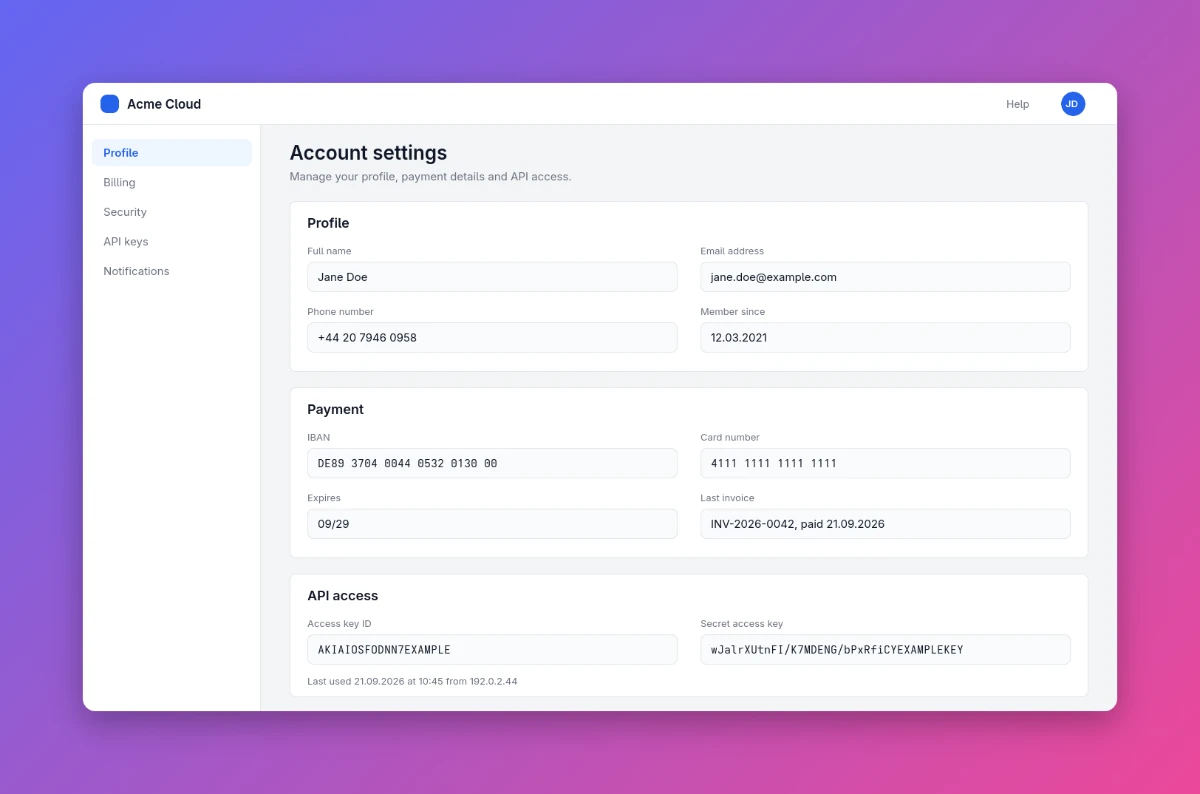
- It opens on the Dusk gradient, with padding, rounded corners and a shadow. The undo button or Ctrl+Z takes the background off again. A screenshot that was already open when you came to this page, or one you reopen from History, opens as it was saved.
- To add a background, or change it, tap the Background swatch at the start of the Frame bar, or press F, and pick a gradient, a plain colour or Transparent.
- Drag Padding or Corners sideways with a mouse, or tap one for a slider. Uncheck Shadow to set the screenshot flat on the background.
- Keep Auto for the screenshot's own proportions, or pick 1:1, 4:5 or 16:9 (on a phone held upright, swipe the bar to them).
- Copy with Ctrl+C, or save as PNG, JPEG or WebP.
Gradients and plain backgrounds#
The eight gradients run from the top left corner to the bottom right. Dusk, Sunset, Ocean, Meadow and Aurora are mid-tones, which set off a light screenshot as well as a dark one. Peach and Sky are pastels for a dark screenshot, and Night, a dark slate, suits a light one. Below them are White, Light grey, Black and Transparent, and a field for any other colour.
Padding, rounded corners and shadow#
Padding is a share of the screenshot's longer side, from 0% to 30%. Corners rounds the screenshot's own corners, by up to 10% of its shorter side, while the background's corners stay square. Shadow casts a soft shadow from the screenshot onto the background.
A transparent background#
With Transparent, the padding stays see-through, and the shadow stays soft and partly transparent. PNG and WebP keep it. JPEG can't store transparency, so the padding comes out white, as the Save menu says when you pick JPEG.
Window screenshots and cut-outs#
A window screenshot with transparent edges and its own shadow, as macOS takes them, shows the background through its edges, and the frame's shadow falls from the window itself. Uncheck Shadow to keep only the window's own. A photo whose background you've removed stands on the gradient the same way. With Padding and Corners at 0% and Auto picked, the background shows only through an image's transparent parts.
Mark up the screenshot#
You can annotate the screenshot with arrows, text and numbered steps. The marks stay on the screenshot and are cut off at its edge, not drawn onto the background.