Upscale an image
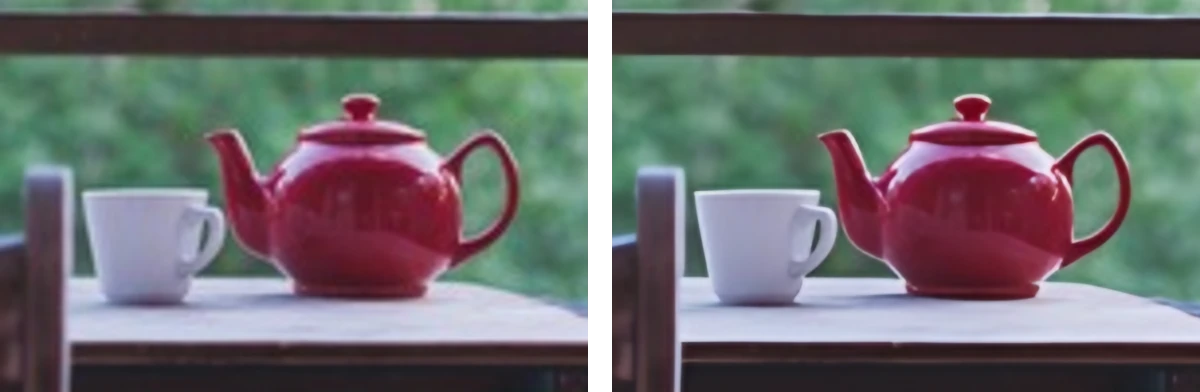
Make a photo twice or four times as wide and tall. An AI model sharpens its edges and removes JPEG blocks as it enlarges it, and it runs on your device, so the photo isn't uploaded. It suits photos more than screenshots.
How to upscale an image#
- Paste a photo with Ctrl+V, drop a file on the page or press Load.
- Pick 2× or 4× on the bar; the end of the bar shows the size the image will have. Then press the Upscale 2× or Upscale 4× button that appears once the photo is open, or the same button on the bar.
- The larger image replaces the photo at a Strength of 50%, half the model's result and half the photo enlarged by the browser. For crisper edges, move Strength toward 100%, and toward 10% to change less: drag it sideways with a mouse, or tap it for a slider.
- Copy it, or save it as PNG, JPEG or WebP. If you last saved at a smaller size, the Save menu keeps that size and says so, and 100% keeps the upscaled one.
Strength changes the result until you edit something else, such as drawing an arrow or cropping. One undo (Ctrl+Z) brings back the photo at its own size, whatever Strength did. Boxes, arrows, text and blurs you added before grow with the photo. On the other pages, pick the Enhance tool, between Cutout and Read near the end of the tools (on a phone, swipe the toolbar to it), and 2× or 4× on its bar.
Photos, not screenshots#
The model learned from photos. On a screenshot it turns grey text black and pale grey backgrounds white at 100%, and at 50% the text still comes out darker. Edges and letters come out crisp, but their shades don't stay as they were.
How large it can go#
2× doubles the width and the height, so the image has four times the pixels, and 4× gives it sixteen times. A photo 960 pixels wide or more comes out at least 3,840 pixels wide at 4×, the width of 4K. On most computers the result can be up to 8,192 pixels on its longer side, so 4× takes a photo up to 2,048 pixels and 2× one up to 4,096. A phone, a tablet or a device with little memory edits images up to 4,096 pixels, so there 4× takes a photo up to 1,024 pixels and 2× one up to 2,048: a 12-megapixel phone photo (4,000 × 3,000) can't be upscaled on the phone. The bar shows the size you'll get, or why a factor can't run.
For an exact width, upscale first, then resize the image to that width when you save. To enlarge one part of a photo that's too large to upscale whole, crop the photo to that part first.
Bigger without losing quality?#
What the model adds is its guess at what a larger photo would show. Edges come out sharper than in a plain enlargement, but fine texture can turn smooth and painted: skin can look waxy, and a small face can change, its eyes and smile redrawn. What a pixelation or a blur hid doesn't come back.
Noise and JPEG artifacts#
Upscaling removes grain and the blocks of a compressed JPEG as it enlarges: at 100% the blocks are gone, and at 50% they're fainter. To remove them and keep the photo's size, with a strength you set, pick 1× on the bar to remove noise from the photo instead.
Traces next to boxes, blurs and pixelations#
Upscaling reads the photo under the boxes, blurs and pixelations you drew on it, so the pixels next to them can carry faint traces of what they hide. Each pixel it makes depends on the photo up to about 34 pixels around it, covered or not, whether you cover before upscaling or after. The traces are faint, but they're in the saved file. To keep a covered part out of the result, save the photo with its covers, open the saved file and upscale it there, or make each cover reach about 34 pixels past what it hides, which is 68 pixels of a 2× result and 136 of a 4× one.
How big will it print?#
At 300 pixels per inch, 4,000 pixels print about 34 cm (13.3 in) wide. The saved file holds no print size, so set it in the print dialog, or the program you print from picks one.
Download size and speed#
An upscaling model (Real-ESRGAN) runs in your browser. With no model files stored, it needs 11.1 MB (6.6 MB of that is the runtime, which background removal and face detection use too). It's the model that removes noise too, so once either page has downloaded it, the other needs nothing more. The page asks before downloading missing files, and it works offline once they're stored. Where the browser can use the graphics card (WebGPU), it takes seconds. Elsewhere it runs on the processor, where half a megapixel takes 40 seconds or more, so there it takes images up to 0.5 megapixels, or 0.25 on a phone, a tablet or a device with little memory, and the bar says so for a larger one. A run that would take more than 3 minutes stops and says how long it would have taken.